
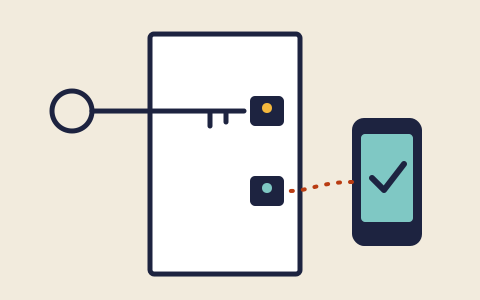
The short version
Multi-factor authentication, often shortened to MFA and also called two-factor authentication or 2-step verification, asks for a second proof that it is really you after you enter your password. If someone learns your password, they still cannot get in without that second proof. CISA, the FTC and the UK NCSC all recommend turning it on, starting with your most important accounts. Some kinds of second factor are stronger than others, but the agencies are clear that any second factor is much better than none.
Three kinds of factor
NIST's introduction to MFA describes three kinds of evidence a person can present:
- Something you know, such as a password or PIN.
- Something you have, such as a phone, a security key or a code-generating app on a device.
- Something you are, such as a fingerprint or face scan.
The protection comes from combining different kinds. A password and a second password are both things you know, so one phishing page could capture both. A password plus something you physically hold means an attacker needs to steal two very different things, usually in two different ways.
A detail that confuses people: the fingerprint you use to unlock your phone is usually checked on the phone itself. It unlocks a key or an app on the device, which is the thing the website actually checks. Your fingerprint is not sent to the website.
The common kinds of second factor
The FTC's consumer guidance lists the common forms a second factor takes. Paraphrased and roughly from most familiar to least:
| Kind | How it works | Points to know |
|---|---|---|
| Text or voice code | The service sends a short code to your phone number, which you type in. | Easy to start with. Codes can be intercepted or talked out of people, so this is the weakest common option. |
| Authenticator app | An app on your phone shows a code that changes every few seconds. | Does not depend on your phone number. A convincing fake site can still ask you to type the code. |
| Push prompt | The service sends a notification to an app; you approve or deny it. | Convenient. Can be abused by sending repeated prompts until someone taps approve. |
| Security key or passkey | A physical key, or a key stored on your device, proves who you are using cryptography. | Checks the website's real identity, so it resists phishing. Not every service supports it yet. |
Which ones resist phishing
CISA's fact sheet on implementing phishing-resistant MFA explains why the kinds in the table are not equal. Codes, whether texted or shown in an app, are something a person can be persuaded to type into the wrong place. A scam page can ask for your password, then ask for the code, and pass both to the real site within seconds. Push prompts can be defeated by a flood of requests sent in the hope that one gets approved out of fatigue or confusion.
Methods based on the FIDO standards, which include hardware security keys and passkeys, work differently. The key checks which website is asking before it responds, so a look-alike site gets nothing useful. CISA describes this kind of MFA as phishing-resistant and the strongest option widely available. NIST's digital identity guidelines likewise give phishing resistance particular weight.
CISA's fact sheet also makes the practical point that matters most for individuals: weaker forms of MFA are still far better than a password alone. If text codes are the only option a service offers, use them. Where a stronger option exists, it is worth moving to over time.
Example
An invented user receives an email saying their storage account is full, with a sign-in link. The page looks right and asks for a password, then for the six-digit code from their authenticator app. A code-based second factor does not stop this, because the person types the code into the fake page. A passkey would not have been offered on that page at all, because the look-alike address is not the site the passkey was created for.
Unexpected prompts
A sign-in prompt or code you did not ask for is information. It suggests that someone may have your password and is trying to get past the second factor. Do not approve the prompt, and do not read the code to anyone, whoever they say they are. Then change the password for that account, using the steps in the passwords explainer. Some apps now ask you to type a number shown on the sign-in screen rather than tap approve, which makes careless approval harder.
Remember too that a legitimate service will not phone or message you to ask for a code it has just sent. That request is a hallmark of a scam, covered in the phishing explainer.
Recovery and lost phones
The main practical worry about MFA is being locked out if a phone is lost or replaced. Services handle this differently, so the general advice is to look at your recovery options when you first turn MFA on, not when you need them. Many services offer one or more of the following: single-use backup codes to print or store safely, a second device or key registered to the account, or a recovery phone number or email address.
Whatever is offered, keep it current. When you change your phone number or retire an old device, update the account. If backup codes are offered, store them somewhere other than the phone they are meant to replace.
Where to turn it on first
CISA and the NCSC both suggest prioritising. The NCSC puts email first, because email is how most other accounts are recovered. After that, a sensible order is:
- Your main email account.
- Your password manager, if you use one.
- Banking and payment accounts, and any account that stores a card.
- Social media and messaging accounts, which can be used to scam your contacts if taken over.
- Cloud storage that holds photos, documents or backups.
The setting usually lives in a section called security, sign-in or login in each account's settings. It typically takes a few minutes per account.