
The short version
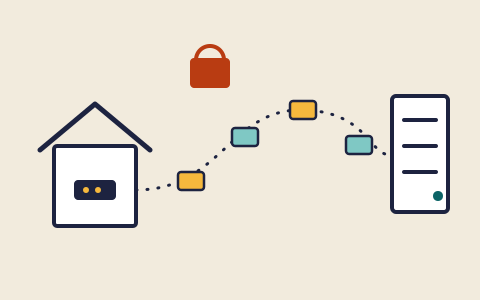
When you open a web page, your device does not receive one continuous stream from a single place. It asks for the page by name, that name is looked up to find a numeric address, and the page then travels to you in many small pieces, each labelled with where it came from and where it is going. On most modern sites those pieces are encrypted for the whole journey. The last few metres, from the box your provider gave you to your phone or laptop, run over your own home network, which is the part you can actually look after.
None of this needs to be understood in depth to use the internet safely. But a rough picture of the journey makes the practical advice in the rest of this site easier to follow: why the padlock matters, why the router deserves an occasional look, and why a slow connection is not always the provider's fault.
Packets and addresses
The Internet Protocol, first written down in the standard known as RFC 791, describes how data is carried across linked networks in small units usually called packets (the standard calls them datagrams). Each packet carries a header that includes a source address and a destination address. Equipment along the way reads the destination and passes the packet one step closer to it. Large things, such as a photo or a video, are split into many packets, and the receiving device puts them back together.
An address under that original version of the protocol, IPv4, is a 32-bit number, normally written as four numbers separated by dots. The number of possible IPv4 addresses is limited, which is one reason a newer version exists. IPv6, specified in RFC 8200, uses 128-bit addresses, written as groups of letters and digits separated by colons. Many devices and networks now use both versions side by side, and you rarely need to know which one is in use.
Inside a typical home, devices are given addresses that only mean something on that home network. The router sits between those private addresses and the wider internet, keeping track of which reply belongs to which device. This is one reason the router matters so much: everything going in or out passes through it.
An everyday picture
Think of a packet as a postcard with a sender and a recipient written on it. Each sorting office reads only the recipient line and passes the card along. A long letter is sent as a numbered stack of postcards, and the recipient puts them back in order. The comparison is loose, but it captures the main idea: no single wire carries your page from end to end.
From a name to an address
People use names such as an example shop or a news site; networks use numbers. The Domain Name System, described in RFC 1034, connects the two. It is a distributed, hierarchical database: no single computer holds every name. Instead, responsibility is split by level, so that servers for a top-level ending such as .com know which servers are responsible for the names beneath it, and so on down the tree.
Your device does not usually do the whole lookup itself. It asks a resolver, often run by your internet provider or set in your router, and the resolver works through the hierarchy on your behalf, then remembers the answer for a while so the next request is faster. This is why a change to a website's address can take some time to be seen everywhere, and why a misbehaving resolver can make many sites seem to fail at once even though the sites themselves are fine.
The practical point for safety is that a name is only as trustworthy as the way you reached it. Typing a known address, or using a bookmark you saved yourself, is a more reliable route to a real site than a link in an unexpected message. The phishing explainer returns to this.
The padlock: encryption in transit
Packets pass through equipment owned by many different organisations. Transport Layer Security, or TLS, is the protocol most websites use to protect that journey; the current version is specified in RFC 8446. The standard describes its purpose as letting a client and a server communicate in a way designed to prevent eavesdropping, tampering and message forgery. In everyday terms: people along the route should not be able to read or quietly change what you send and receive, and your browser can check that it is talking to the server that holds the right credentials for the name you asked for.
When a site uses TLS, the address begins with https and browsers show a padlock or a similar indicator. It is worth being precise about what that does and does not mean:
- It means the connection between your browser and that site is encrypted, and that the site proved it controls the name in the address bar.
- It does not mean the site is honest. A scam site can have a valid certificate for its own look-alike name. The padlock tells you the line is private, not who is on the other end.
So the padlock is necessary but not sufficient. Check the name as well, especially when you are about to sign in or pay.
What speed means
Internet speed is usually quoted in megabits per second (Mbps). The FCC's Broadband Speed Guide explains that download speed, how fast data reaches you, and upload speed, how fast you send data, are measured separately, and that how much you need depends on what you do online and how many people and devices use the connection at the same time. Video calls, for example, use upload as well as download, which surprises people whose plan has a much lower upload figure.
The speed of your plan is not always the speed a device experiences. Wi-Fi signals weaken with distance and through walls, older devices may not support newer Wi-Fi standards, and several busy devices share the same connection. Before concluding that a plan is too slow, it can help to test from a device close to the router, or one connected by cable, and compare.
Your router, the front door
Many homes have a single box that combines a modem (the part that talks to your provider's line), a router (the part that directs traffic between your devices and the internet) and a Wi-Fi access point. Whatever the arrangement, this equipment is the boundary between your home network and everything outside it, and it runs software of its own, often called firmware.
CISA's guidance on home network security and on securing wireless networks treats this box as something to configure, not simply plug in and forget. Its recommendations centre on a few themes: replace default passwords, use strong encryption for the wireless network, keep the router's software up to date, and switch off features you do not need. These are covered in the checklist below.
Default settings matter because they are, by definition, the same on many devices. A default administrator password may be printed in a manual that anyone can find. A network name that announces the router's make tells an observer which model's known weaknesses to try. Changing these takes a few minutes in the router's settings page or companion app.
A router checklist
The list below paraphrases the steps in CISA's home and wireless network guidance. Menus differ between models, so use your router's own manual or your provider's help pages for where each setting lives.
- Change the administrator password. This is the password for the router's settings, which is separate from the Wi-Fi password your guests use. Replace any default with a long, unique password, as described in the passwords explainer.
- Use the strongest Wi-Fi encryption your devices support. CISA points to WPA3, or WPA2 where WPA3 is not available. Older options are weaker and best avoided.
- Set a strong Wi-Fi password. Anyone with it can join your network and reach the devices on it.
- Change the network name if it reveals too much. A name that gives away the router model or your household's details helps nobody but an attacker.
- Keep the firmware updated. Turn on automatic updates if your router offers them, or check periodically. The updates explainer explains why.
- Turn off what you do not use. Features such as remote administration from outside the home widen the door. If you never use them, they need not be on.
Example
An invented household finds its Wi-Fi network is still named after the router's brand and model number, and the settings page still accepts the password printed on the sticker underneath. They rename the network to something neutral, set new administrator and Wi-Fi passwords, select WPA3 with a WPA2 fallback because one older tablet needs it, and switch on automatic firmware updates. Total time: about fifteen minutes.
Away from home, the same logic applies in reverse: you do not control a cafe or hotel network, so rely on encrypted connections, keep your devices updated, and be careful with network names that merely look official.
Next: Passwords and passkeys: what makes a login hard to steal