
The short version
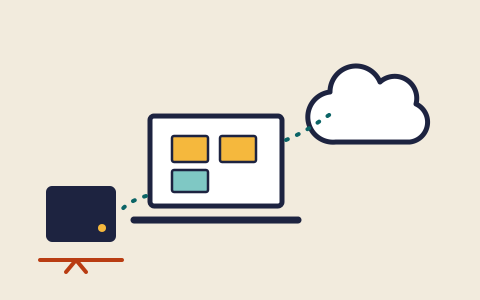
A backup is a second copy of your important files kept somewhere other than the device they live on. The UK NCSC lists backing up among its top tips for staying secure online, and CISA's ransomware guidance treats backups as one of the most important protections an organisation can have. For a household, the essentials are short: decide what you cannot afford to lose, copy it automatically to cloud storage or an external drive, keep at least one copy that is not permanently connected, and check from time to time that you can actually get files back.
What backups protect against
Most data loss is not dramatic. A phone is dropped in water, a laptop is stolen from a car, a drive fails after years of use, or a folder is deleted by mistake. A backup turns each of these from a loss into an inconvenience.
Backups also matter for security. Ransomware is malicious software that encrypts files and demands payment for their return. CISA's #StopRansomware Guide recommends that organisations keep offline, encrypted backups of important data and regularly test them, precisely so that they can recover without depending on the attackers. The same logic applies at home: if your photos and documents exist in a safe second place, a locked or wiped device is far less frightening.
The FTC's guidance on protecting personal information also includes backing up data, alongside keeping software updated and protecting accounts, as part of a basic defence against hackers and scammers.
What to back up
Start with what would be hardest to replace. For most households that means:
- Photos and videos, often the only copies of family memories.
- Documents, such as letters, records, school or work files, and scans of important papers.
- Anything you have made, such as writing, music, designs or spreadsheets you maintain.
- Information needed to recover accounts, such as MFA backup codes, stored safely and separately from the device they protect. See the MFA explainer.
Programs and apps themselves usually do not need backing up, because they can be downloaded again. Many phones and computers can also back up their settings, which makes moving to a new device easier, but the files above come first.
Where copies can live
CISA's guide to data backup options walks through the main places a home user can keep a backup, each with trade-offs. In broad terms:
| Location | Strengths | Watch for |
|---|---|---|
| Cloud storage | Automatic, kept away from your home, reachable from any device. | Depends on your account's security and the service's terms. A synced folder can copy a deletion or a damaged file too. |
| External hard drive or SSD | Large capacity, one-off cost, under your control. | Can be lost, stolen or damaged with the computer if kept beside it. Drives eventually fail. |
| USB flash drive or memory card | Small and cheap; handy for a few important files. | Easy to lose; less suited to large or frequent backups. |
The NCSC's backup guidance suggests either cloud storage or a removable device such as a USB stick or external drive, and notes that many devices can back up automatically to cloud storage once the setting is turned on. Using both, a cloud copy and a drive at home, covers more kinds of failure than either alone.
If you use cloud storage, the account becomes part of your backup. Protect it with a long, unique password and a second factor, as described in the passwords explainer.
Keep one copy apart
A copy that is always connected to your computer can be damaged by the same event that damages the computer. If ransomware encrypts your files, it may also encrypt a drive that is plugged in at the time. If a fire or theft takes the laptop, it may take the drive on the desk next to it.
That is why the NCSC advises keeping at least one backup that is not permanently connected to your device, and why CISA's ransomware guidance stresses offline backups. In practice, that could be an external drive you plug in for a backup and then unplug and put away, or a drive kept at another address and refreshed when you visit. Cloud storage with version history, which lets you go back to earlier copies of files, can also help undo damage, but check how far back your service keeps versions.
Example
An invented household turns on automatic photo backup to cloud storage on both phones, and keeps an external drive in a drawer. On the first weekend of each month, one of them plugs the drive into the family laptop, lets the backup run, then unplugs it and puts it away. Their photos now exist in three places: the phones, the cloud and the drive, and one of those is disconnected most of the time.
A backup you have not restored
A backup is only useful if files can be brought back from it. CISA's ransomware guidance recommends regularly testing backups, and the same habit suits a household. Problems such as a setting that quietly stopped working, a folder that was never included, or a forgotten password for the backup account tend to be discovered only when someone tries to restore.
A test does not need to be elaborate. Every few months, pick a few files from the backup, perhaps a recent photo and an older document, and restore them to a different folder. Open them to make sure they are complete. If you use cloud storage, sign in from a different device and check that recent files are there.
Setting up a routine
- List what you cannot afford to lose and where it currently lives.
- Turn on automatic backup to cloud storage for phones and computers, and protect that account with MFA.
- Add an external drive for a second copy, connected only while a backup runs.
- Set a calendar reminder for the drive backup, monthly or at whatever interval matches how often your files change.
- Every few months, restore a few files to prove the backup works.
- When you replace a device, check the new one is included in the backup before wiping the old one.
That is the last explainer. Look up a term in the glossary